

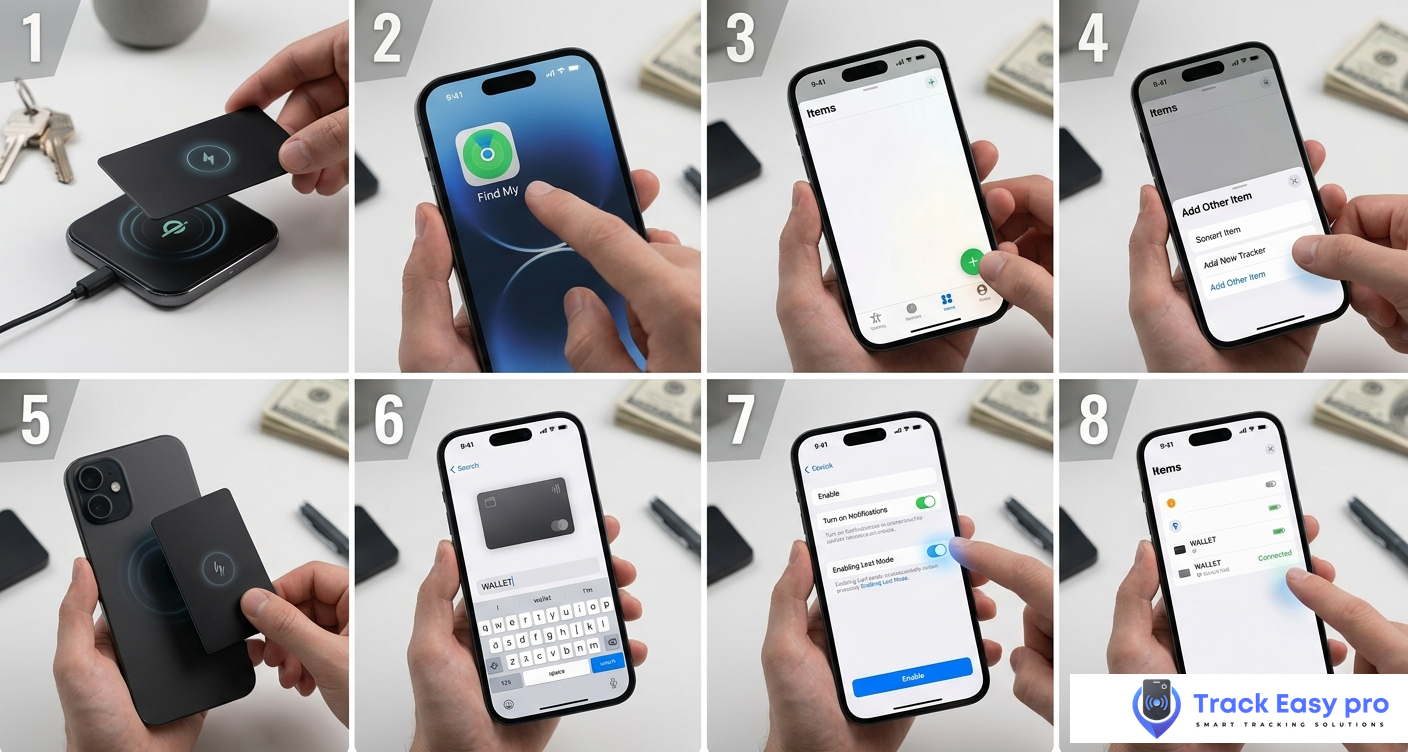
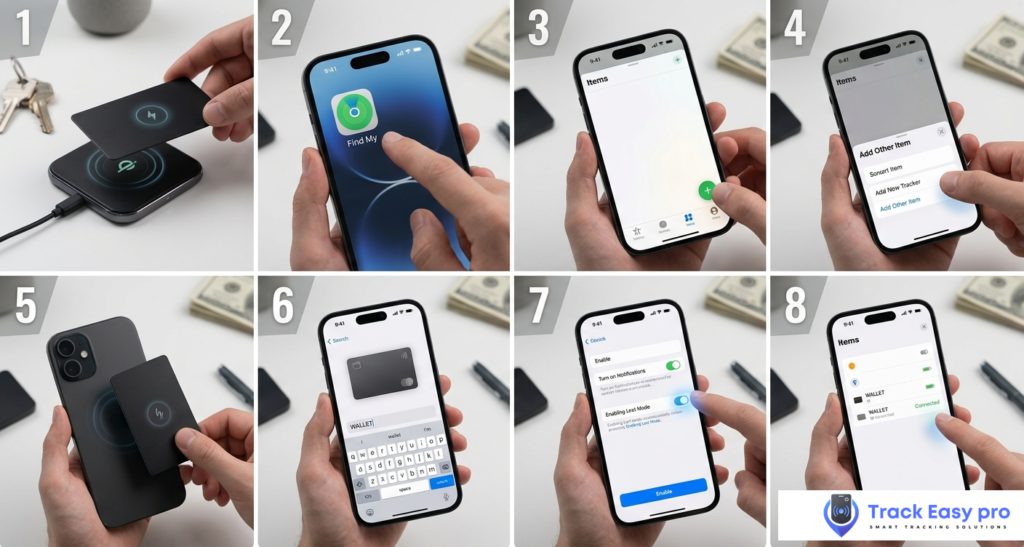
Only in 8 steps, How to Set Up Apple Find My Tracker Card Setting up an Apple Find My tracker card takes under two minutes. You do not need to download any extra app, create a new account, or enter any passwords. Everything happens inside the Find My app that is already on your iPhone.
This guide covers the complete setup process — from charging your card to enabling Lost Mode — plus troubleshooting tips if something does not work the first time.
What You Need to Set Up Apple Find My Tracker Card
Before picking up your phone, make sure you have the following ready:
Required:
- An iPhone running iOS 14.5 or later (Settings → General → About → Software Version)
- An Apple ID with two-factor authentication enabled
- Bluetooth turned on (Settings → Bluetooth → toggle ON)
- Location Services turned on (Settings → Privacy & Security → Location Services → ON)
- Your DK01 tracker card (or any MFi-certified Find My tracker card) powered on
Optional but recommended:
- Wi-Fi or mobile data turned on — helps your iPhone verify the card during pairing
Does not work with Android. Find My tracker cards using Apple’s network are iOS-only. Android users need a Google Find Hub-compatible tracker such as Tile Slim or Pebblebee Card 5.
Step 1 Charge Your Tracker Card First
Most tracker cards ship with a low or empty battery. Before pairing, place your DK01 on any standard Qi wireless charger for at least 30–60 minutes.
How to charge the DK01:
- Place the card face-down on your wireless charging pad
- The charging pad you use for your iPhone works perfectly
- A full charge takes approximately 1–2 hours
- Charge indicator: the LED on the card will glow while charging
You do not need a full charge to pair — even 20–30 minutes of charge is enough to complete setup. But starting with a charged card prevents your tracker from going offline hours after pairing.
Step 2: Turn On Your Tracker Card
Once charged, you need to power on the card and put it into pairing mode.
For the DK01:
- Press and hold the power button on the front of the card
- Hold for approximately 3–5 seconds
- You will hear a short beep — this means the card is on and ready to pair
- The LED indicator will flash, confirming it is in pairing mode
For other MFi tracker cards: The process is similar across brands. Press and hold the main button until you hear a beep or see the LED blink. If nothing happens, the card may need more charge — return it to the wireless charger for another 20 minutes.
Step 3: Open the Find My App on Your iPhone
Find My comes pre-installed on every iPhone running iOS 14 or later. You do not need to download it.
To find it: swipe down on your home screen and search for “Find My” — the icon is green with a radar-style symbol.
Once open, you will see three tabs at the bottom:
- People — for sharing location with contacts
- Devices — for your Apple devices
- Items — this is where your tracker card will live
Tap the Items tab.
Step 4: Add Your Tracker Card
With the Items tab open:
- Tap the “+” (plus) button in the top-left corner of the screen
- A menu will appear with two options:
- “Add AirTag“
- “Add Other Item”
- Tap “Add Other Item”
- Your iPhone will begin scanning for nearby Find My accessories via Bluetooth
- Within a few seconds, your DK01 (or tracker card) will appear on screen
- Tap the card name when it appears
- Follow the on-screen instructions — this takes about 30 seconds
Important: Make sure only one unpaired tracker card is near your iPhone during this step. If you are pairing multiple cards, do them one at a time.
Step 5: Name Your Tracker Card
After tapping to connect, Find My will ask you to give the item a name and choose an icon.
Naming tips:
- Choose a name that tells you exactly where this tracker lives
- “My Wallet” is the most obvious choice for a wallet tracker
- If you have multiple cards (wallet, travel bag, suitcase), name them clearly: “Black Wallet”, “Travel Bag”, “Carry-On”
- You can change the name later at any time
Icon selection: Find My offers a range of icons. For a wallet tracker, choose “Wallet” from the list. This makes it instantly recognisable when you open the app.
Tap Continue, then tap Done.
Your tracker card is now set up and will appear in your Items tab in Find My.
Step 6: Verify It Is Working
Once paired, test the card immediately to confirm everything is working correctly.
Test 1 — Play Sound:
- In the Find My app, tap your tracker card under Items
- Tap “Play Sound”
- Your DK01 should beep within 2–3 seconds
- If you hear the beep, the Bluetooth connection is confirmed working
Test 2 — Check Location:
- Still in the Items detail screen, look at the map
- It should show your approximate current location with a label like “With You — Now”
- This confirms the card is broadcasting its location to your iPhone
If both tests pass, your setup is complete.
Step 7: Enable Separation Alerts (Recommended)
Separation alerts notify you when your wallet moves out of Bluetooth range — in other words, when you walk away and leave it behind. This is one of the most useful features of a Find My tracker card.
To enable:
- In Find My, tap your tracker card under Items
- Scroll down to find “Notify When Left Behind”
- Toggle it ON
- You can set exceptions — for example, “Do not notify me when I am at Home” — so you are not alerted when you intentionally leave your wallet at home
Once enabled, your iPhone will send you a notification within minutes if you leave without your wallet. This is particularly useful at restaurants, airports, and offices.
Step 8: Enable Lost Mode
Lost Mode is what activates when your wallet is genuinely missing — not just nearby but out of Bluetooth range.
To enable Lost Mode when your wallet is lost:
- Open Find My → Items → tap your tracker card
- Scroll down and tap “Lost Mode”
- Tap “Enable”
- Enter a phone number or message — this is what will appear if someone finds your wallet and scans it with an iPhone
- Tap “Activate”
Once in Lost Mode, every Apple device that comes near your tracker card will anonymously relay its location to your Find My app. You will receive a notification each time the location updates.
What to write in your Lost Mode message: “This is a lost wallet. Please call +01-XXX-XXXXXXX if found. Reward offered.”
Keep it brief, include a contact number, and consider mentioning a reward — it increases the chance of a good-faith return.
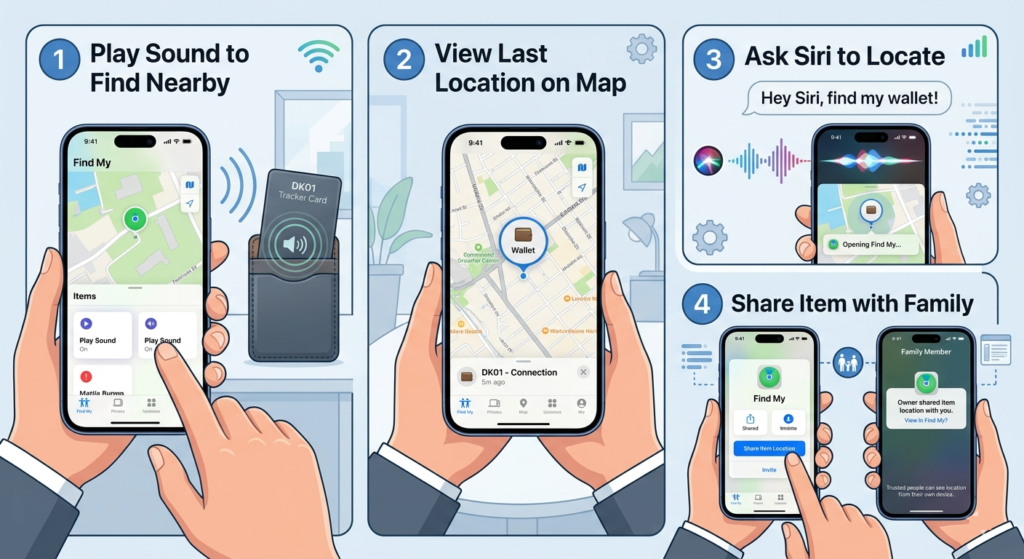
How to Use Find My Day-to-Day
After setup, using your tracker card takes just a few taps.
To find your wallet nearby: Open Find My → Items → tap your card → tap “Play Sound.” Your DK01 will beep. Follow the sound.
To see your wallet’s last known location: Open Find My → Items → tap your card → the map shows where your wallet last connected to the Find My network.
To ask Siri: Say “Hey Siri, find my wallet” — Siri will open the Find My app and show your tracker’s location directly.
To share your wallet’s location with a family member: Open Find My → Items → tap your card → scroll down → tap “Share Item Location.” This lets a trusted person see your wallet’s location from their own iPhone.
Troubleshooting: Common Problems and Fixes
Problem: My tracker card does not appear when I tap “Add Other Item”
Possible causes and fixes:
- Card is not in pairing mode — press and hold the button again until you hear a beep
- Card battery is too low — charge for 30 more minutes and try again
- Bluetooth is off on your iPhone — go to Settings → Bluetooth and toggle ON
- Another device is interfering — move away from other Bluetooth devices and try again
- Card is already paired to another Apple ID — press the card button 5 times quickly to factory reset it, then try pairing again
Problem: The tracker shows “No Location Found”
This is normal when the card has not been near any Apple device recently. It does not mean the card is broken. It means no Apple device has passed close enough to relay the signal. In densely populated areas — cities, malls, airports — location updates come within minutes. In rural areas, updates may be less frequent.
Problem: “Play Sound” is not working
The sound button only works when your iPhone has a direct Bluetooth connection to the card — meaning the card is within approximately 30–50 metres. If the card is further away, the sound button will be greyed out or unavailable.
Problem: I accidentally paired the card to the wrong Apple ID
Open Find My on the correct iPhone → Items → Add Other Item. If the card shows as already owned, perform a factory reset on the card first (press the button 5 times quickly, holding on the 5th press) and then try pairing again.
Problem: My card paired but the location never updates
Check that Location Services is fully enabled: Settings → Privacy & Security → Location Services → Find My → select “While Using” or “Always.” Also confirm that Find My network is enabled: Settings → your name → Find My → Find My network → ON.
How to Remove a Tracker Card from Find My
If you want to unpair your tracker card — to give it to someone else, reset it, or replace it:
- Open Find My → Items
- Tap your tracker card
- Scroll to the very bottom
- Tap “Remove Item”
- Confirm
After removal, the card can be paired to a new Apple ID.
Frequently Asked Questions
Do I need to download a separate app to use my DK01? No. The DK01 uses Apple’s Find My network and is managed entirely within the Find My app that already comes on your iPhone. No third-party app, no account, no subscription.
Can I pair one tracker card to multiple iPhones? No. Each Find My tracker card can only be paired to one Apple ID at a time. However, everyone in a Family Sharing group can see shared items. To share your tracker with a family member, use the “Share Item Location” feature within Find My.
How many tracker cards can I add to Find My? You can add up to 32 items in Find My, including shared items and accessories. For most people, this is more than enough to cover a wallet, bag, keys, and luggage.
What iOS version do I need? iOS 14.5 or later is required for third-party Find My accessories. To check your version, go to Settings → General → About → Software Version. If you are on an older version, go to Settings → General → Software Update.
Does the tracker card work if my iPhone is offline? Yes. The Find My network works independently of your internet connection. Other Apple devices near your lost card relay its location to Apple’s servers. When your iPhone reconnects to the internet, it pulls the latest location data.
Will my tracker card drain my iPhone battery? No. The Find My network uses extremely low-energy Bluetooth signals. The battery impact on your iPhone is negligible — most users notice no difference at all.
Can I use the same tracker card on an iPad? Yes. The Find My app works on iPhone, iPad, and Mac. Your tracker card will appear across all devices signed into the same Apple ID.
Now that your card is set up, learn how to use it to its full potential. Read our complete DK01 tracker card review for all features explained in detail, or see how to track a lost wallet using iPhone for what to do when your wallet actually goes missing. Considering whether a tracker card was the right choice? See our AirTag vs wallet tracker card comparison.

AG Baloch is an SEO expert, content writer, and technology educator who specializes in creating accurate, user focused content that informs and inspires.